Preparing and uploading your file
Where the Import entry lives, which files it accepts, and what happens to an upload you leave behind.
4 min readUpdated
A Task Board can import a spreadsheet into itself from a Monday.com board export or an OurOpero board export. The process runs as an eight step dialog, and this article covers getting the file into the import wizard.
Starting an Import#
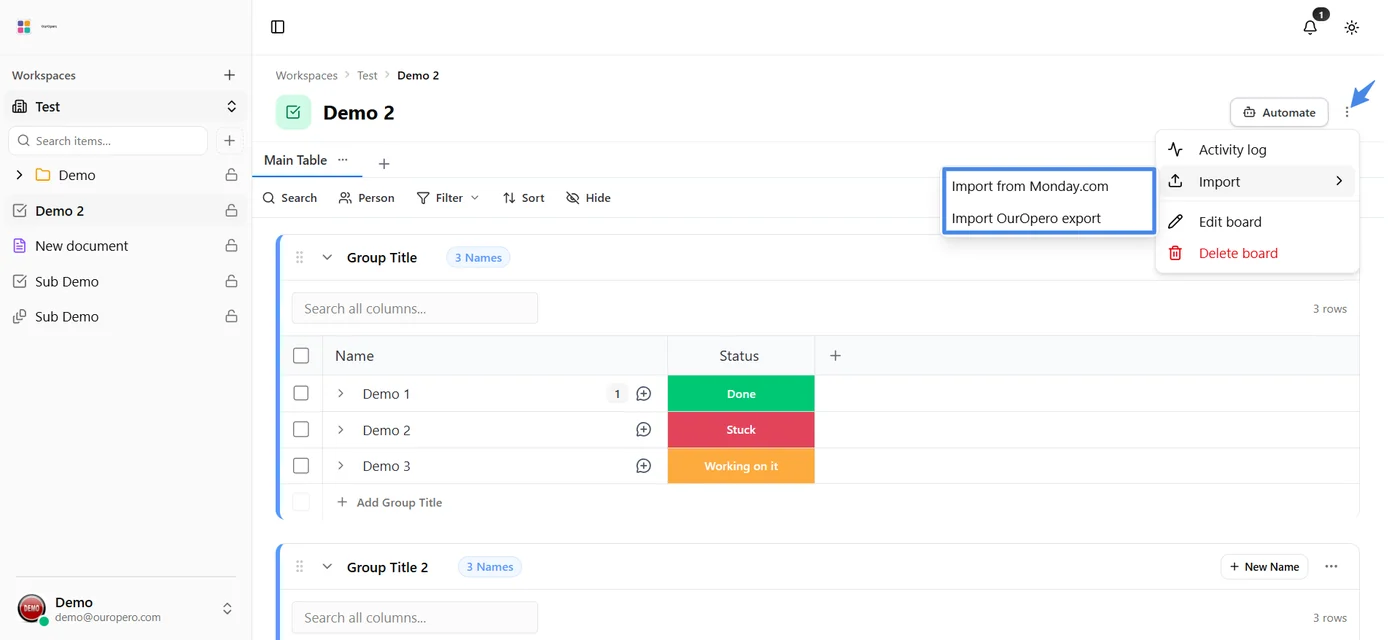
- Open the board and choose the three dot "More options" button in its header.
- Open the Import submenu.
- Choose "Import from Monday.com" or "Import OurOpero export", depending on where the file came from.
The Import entry is available only on Task Boards and is located in the ⋯ menu, which viewers and guests cannot see. While an import is already running, the entry is hidden because a board can process only one import at a time.
What the File Has to Be#
- The file must be .xlsx or .csv. No other file types can be imported.
- The file can be up to 50 MB.
- The file cannot be empty.
The Two File Sources#
Choose a source from the "File source" control. The wizard then determines the file layout and reports what it found: "Board export", with its groups, subitems, updates, and time tracking sheets, or "Flat table", a single sheet with a header row.
Uploading#
Drop the file onto the upload area or choose it with the file picker. Both methods work. A percentage shows the upload progress, and Cancel stops the transfer. Once the file is uploaded, the step shows "Reading the file..." while the columns are processed.
Leaving and Coming Back#
Closing the dialog before the import starts keeps the uploaded file instead of discarding it. Clicking outside the dialog also doesn't close it, so a partially completed mapping remains intact. Every step before the import itself has a "Discard upload" button if you want to remove the file intentionally.
A file uploaded within the last hour but not yet imported is offered when you next open the wizard. A Continue prompt shows the filename with Continue and "Start over" options.
Previous Imports#
The first step also lists the board's previous imports, newest first. Each entry shows the filename, status badge, number of rows imported, number of failed rows, and date. Four imports are shown initially, with a "Show all" toggle for the rest. Each row offers View, "Roll back", and Delete. A file that was uploaded but never imported offers Continue instead of View.