Troubleshooting imports
The messages an import can give you, what each row outcome means, and the three ways out: retry, rollback, and delete.
5 min readUpdated
This article explains the messages shown when something goes wrong during an import, what each row outcome means, and what you can do when an import does not go as planned.
Upload Problems#
| What It Says | What to Do |
|---|---|
| Only .xlsx or .csv can be imported | Save the file in one of these two formats first. Other formats must be exported before they can be imported. |
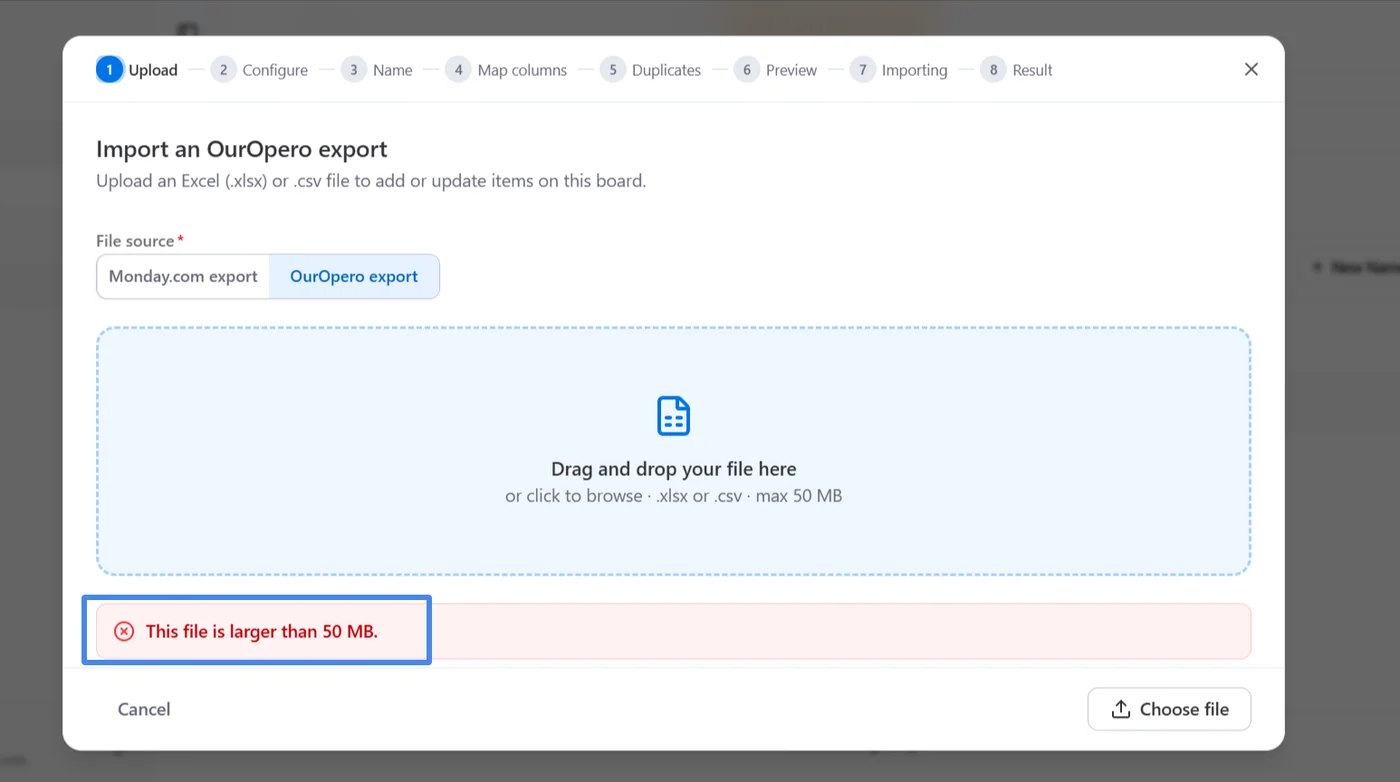
| The file is larger than 50 MB | Split the file into smaller files and import them one after another. |
| The file is empty | Check that you exported the board itself and that the export contains data. |
| Upload failed, check your connection | Try again using a more stable connection. |
| Reading the file took too long, or the connection dropped | Try again or split the workbook into smaller files. |
| Another import is running on this board | Wait for the current import to finish. A board can run only one import at a time. |
| The import no longer exists | The job was discarded or deleted. The dialog returns to the Upload step so you can start again. |
What the Status Badge Means#
| Status | Where It Sits |
|---|---|
| Draft, Reading file, Uploaded, Ready to import | Before the import has run. |
| Queued, Importing, Paused | During the import. The board is locked while a job is queued or importing, and becomes editable again when it is paused. |
| Completed, Completed with errors, Failed, Cancelled | The import has finished, with or without problems. |
| Rolled back | The import finished and was then undone. |
What Happened to a Single Row#
| Outcome | What It Means |
|---|---|
| Created | A new item was added. |
| Updated | An existing item was changed under the Update policy. |
| Skipped (duplicate) | The row matched an existing item under Skip duplicates. |
| Skipped (empty) | There was nothing in the row to import. |
| Skipped (ambiguous match) | Two or more existing items shared the row's value in the match column. |
| Skipped (already imported) | The row had already been imported in this job. |
| Failed | The row could not be written. The reason is shown in the Rows log and CSV summary. |
Filter the Rows log by outcome to focus on specific rows, or download the CSV summary and review it in a spreadsheet.
Retrying#
Retry is available only from the Result screen.
- A failed job always offers a retry. It shows "Retry failed rows" when there are failed rows to run again, and "Resume import" otherwise, which continues with rows that have not yet run.
- A job that completed with errors offers a retry only when it contains failed rows.
Rolling Back#
Rollback undoes an import. It removes every item, comment, and time session created by the import, and restores updated items to the values they had before the import.
Rollback is available for a job that completed, completed with errors, failed, or was cancelled. A job that has already been rolled back cannot be rolled back again.
Removing an Import from the List#
Selecting Delete on a row under Previous imports removes the import record and its Rows log. This does not roll back the import. Items that were already imported remain on the board, so roll back the job first if you want those items removed as well.